Wednesday, 28 October 2015

How to add a drop-down list to an Excel cell

In Access, you can limit user entries by forcing users to choose a value from a list control. Office applications use the same functionality in built-in drop-down lists. For instance, the Highlight and Font Color controls on most Formatting toolbars use this flexible tool. Simply click the small triangle to the right of the icon to display a list of choices.
You can create the same type of control for your users in an Excel sheet, but the process isn't intuitive. The option is in the Data Validation feature. Fortunately, once you know the feature exists, it's easy to implement. You need only two things: a list and a data entry cell. The following sheet shows a simple drop-down list in an Excel sheet.
Users click the drop-down arrow to display a list of items from A1:A3. If a user tries to enter something that isn't in the list, Excel rejects the entry. To add this drop-down list to a sheet, do the following:
  1. Create the list in cells A1:A3. Similarly, you can enter the items in a single row, such as A1:C1.
  2. Select cell E3. (You can position the drop-down list in most any cell or even multiple cells.)
  3. Choose Validation from the Data menu.
  4. Choose List from the Allow option's drop-down list. (See, they're everywhere.)
  5. Click the Source control and drag to highlight the cells A1:A3. Alternately, simply enter the reference (=$A$1:$A$3).
  6. Make sure the In-Cell Dropdown option is checked. If you uncheck this option, Excel still forces users to enter only list values (A1:A3), but it won't present a drop-down list.
  7. Click OK.

You can add the drop-down list to multiple cells. Select the range of data input cells (step 2) instead of a single cell. It even works for noncontiguous cells. Hold down the Shift key while you click the appropriate cells.
It's worth noting that the drop-down arrow is visible only when the cell is active.

Wednesday, 2 September 2015

Configure TCL in eclipse

Hello Guys,
Before some time I was working on tcl script.somewhere in middle i need to integrate tcl in eclipse editor,at that time i explore lot of site but as per below step i got successfully configure tcl in eclipse.

To configure Eclipse as a TCL/TK IDE you would need the plugin DLTK (Dynamic Language Toolkit). Information on DLTK is availablehttp://www.eclipse.org/dltk/
DLTK supports other scripting languages such as PERL, PHP, TCL/TK etc.
Things you would need to setup TCL/TK Eclipse IDE –
  • Eclipse 3.4 or greater (ofcourse) : Java or JavaEE IDE.
  • DLTK’
  • TCL/TK
  • Komodo Remote Debugger
Steps to follow are –
  • Download and install Eclipse 3.4 or greater from eclipse.org (install the Java or JavaEE IDE).
  • To install the DLTK, in your eclipse IDE navigate the menu item “Help > Software Updates…”, or “Help > Install New Software…” to install plugins/updates.
  • After the site has been added it would show the list of plugins available under DLTK. Choose the following –
>>> Dynamic Language Toolkit – Core Frameworks
>>> Dynamic Language Toolkit – Core Frameworks SDK
>>> Dynamic Language Toolkit – iTCL Development Tools
>>> Dynamic Language Toolkit – iTCL Development Tools SDK
>>> Dynamic Language Toolkit – TCL Development Tools
>>> Dynamic Language Toolkit – TCL Development Tools SDK
>>> Dynamic Language Toolkit – XOTcl Development Tools
>>> Dynamic Language Toolkit – XOTcl Development Tools SDK

  • After you have selected all the above packages and agreed to the license agreement, install them.
  • After the install of the components, eclipse will re-start and the TCL environment (perspectives, windows etc.) would have been configured into eclipse.
  • Now download and install TCL Shell and interpreter itself. For Windows, you can download it from ActiveState (http://www.activestate.com/activetcl/) and for Linux download it from www.tcl.tk/software/tcltk/
  • After you have installed TCL in your preferred path/location; Open Eclipse IDE and follow the menu option “Window > Preferences > TCL“; Click on “Interpreters“, click Add button on the right, enter interpreter name as “TCL” and click “Browse..” and choose the path to the Tcl interpreter executable. Click OK and save the setting.


  • Now you are done. You can write and run TCL programs via Eclipse.
  • To debug your Tcl programs you would need to install the Komodo remote debugger.
  • You can download Komodo from activestate – http://aspn.activestate.com/ASPN/Downloads/Komodo/RemoteDebugging
  • Install the above software under a directory of your choice.
  • Now, open eclipse, and navigate to the following menu option “Window > Preferences > TCL“, expand TCL and then choose “Debug > Engines > Active State“. Under the “Paths” tab, select the “Path:” dropdown and under “External Debugging Engine” select browse and choose the executable for komodo remote debugger (for windows it would be dbgp_tcldebug.exe). Click OK and save the setting.
Now you are all set. You should be able to choose new TCL project, write your Tcl code and debug your programs.
Snapshot of Eclipse screen:


Reference :

Wednesday, 19 August 2015

Python in eclipse

In industry especially in Aerospace, some of the projects are based on the Python language for verification purpose. In that case developer or verifier deals with the source or application code written in python. In most of the cases it's not just couple of files to deal with but has large amount of files and it's support files too. If person need to trace code and require to find definitions of support functions and class then it becomes tedious. To make it easy, Eclipse is the solution to deal with.

Given below are steps to use Eclipse for your Python Project.

Steps to Configure Eclipse on your Windows PC:
A. Download Eclipse software for your 32/64 bit OS from internet or by other way.
B. If you are using java 32 then use 32bit of eclipse version else 64 bit eclipse version.
C. Follow the steps mentioned in: www.rose-hulman.edu/class/csse/resources...on-configuration.htm to add python plugin in existing eclipse.
D. Link with existing source so that your .py scripts and utility both clubbed together as mentioned in below steps (“Steps to create Python Project”).

Steps to create Python Project:
Please refer link file "Create Python Project in Eclipse.docx" for detail.


Steps to Run Python script from Eclipse:
Please refer link file "Steps to run python file in Eclipse.docx" for detail.

Note: Here i gave a reference of PFCC project in attached document. In general, everybody should start to referring from step 2 of this document.

For getting clear doubts one can refer link www.ics.uci.edu/~pattis/common/handouts/...eclipse/lecture.html

Tuesday, 11 August 2015

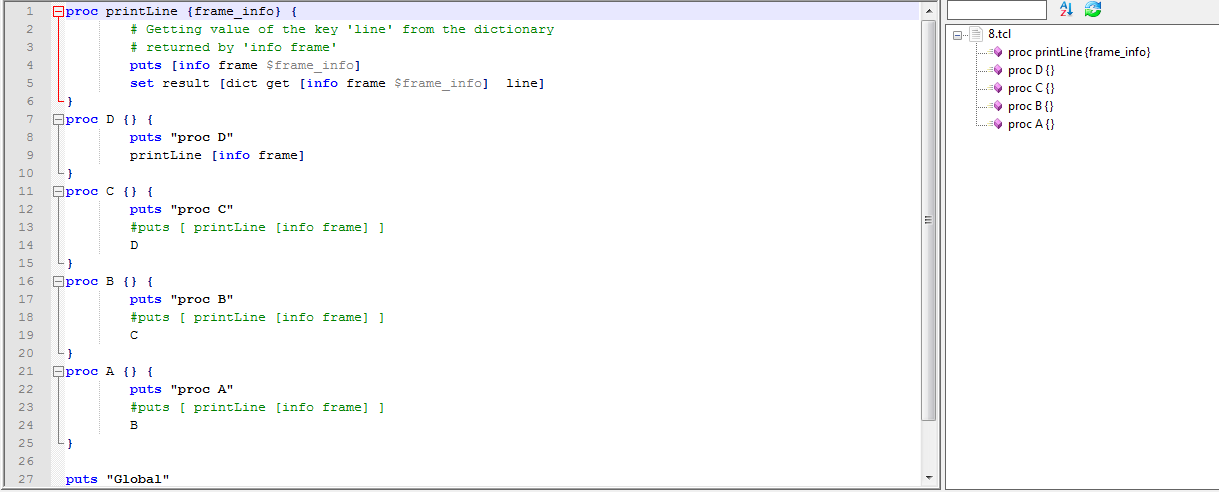
Function list for TCL file in notepad++

Method for the Function List Work for Tcl script


Hello Guys,One more good solution for notepad++.When I was doing my project i came across that function list is not visible for tcl script file and without function list ,it is very tedious to understand code or edit code.so just google it and explore some solution regarding this.Here I tried to explain solution with step by step so it is easy to understand.


Open functionList.xml file (Location : C:\Program Files (x86)\Notepad++\)in an editor.  FunctionList.xml is in the installation directory of Notepad++.
Add this line to the section with all the other association-entries.


 <association langID="29" id="tcl_procedure"/>


Add this to the section <parsers>


<parser id="tcl_procedure" displayName="Tcl source" commentExpr="(#)">
    <function
            mainExpr="^[\t ]*((proc)[\s]+)[^\n]+\{"
            displayMode="$functionName">
        <functionName>
            <nameExpr expr="[\w: ]+ \{.*\}"/>
        </functionName>
    </function>
</parser>

Now press Windows key and go to run window


Then write below line in run window

 %APPDATA%\notepad++


Then It will open window from them just delete functionList.xml file.It is actually cache file.

 Restart Notepad++.


 here you go.......

Reference For BASH script:-

http://99-developer-tools.com/notepad-function-list-tcl-bash/

Wednesday, 24 June 2015

Install Qt 5.4 in Ubuntu 14.04


First you need to download according to your OS version(32 bit or  64-bit). 

Download link is below..


For 32bit

1)    wget http://download.qt-project.org/official_releases/qt/5.4/5.4.0/qt-opensource-linux-x86-5.4.0.run

2)    chmod +x qt-opensource-linux-x86-5.4.0.run

3)    ./qt-opensource-linux-x86-5.4.0.run


For 64bit

1)    wget http://download.qt-project.org/official_releases/qt/5.4/5.4.0/qt-opensource-linux-x64-5.4.0.run

2)    chmod +x qt-opensource-linux-x64-5.4.0.run

3)    ./qt-opensource-linux-x64-5.4.0.run
After this command  User Interface window will open then press next according to instruction. 


Note: Same way you can download any version just change 5.X according to version you want to install.


Wednesday, 10 June 2015

Apple's iOS 9 Features

1. Siri goes proactive

One of the major overhauls in iOS 9 can be found with Siri. The digital voice assistant has received a colourful facelift, but it's what's going on behind the scenes that is more interesting.

The new interface displays content in a better way, and Siri can now understand a wider range of requests on top of what was on offer in iOS 8. We were shown a number of examples during the keynote, including "show me my photos from Utah last August", "remind me to grab my coffee off the roof when I get in my car" and "play the top songs from 1982" via Apple Music.

Siri has been, until now, a reactive service, but that's changed in iOS 9. It's now Apple's answer to Google Now, with context sensitive information based on time, date and location. It can, for example, intelligently recognize when you get to the gym and plug in your headphones you'll want your workout mix, and display it on your lock screen.

2. Battery performance

In iOS 8, there is no clear battery saving mode. You're left to your own devices to turn off data, Wi-Fi, Bluetooth etc to try and conserve power.

That changes in iOS 9 with the introduction of a "low power mode," which Apple claims will provide you with three additional hours of typical usage.

iOS 9 apparently improves general performance too, with Apple saying it gives you an extra one hour of full usage over devices running iOS 8.

3. Multitasking on iPads

There are a few iPad-only new features incorporated into iOS 9. First up is the QuickType Keyboard, which adds handy copy, cut, paste tools to the suggestion bar, along with access to the camera, attachments and formatting.

Use two fingers on the keyboard and it becomes a track pad, allowing you to easily select the text you want -- something which is a little tricky in iOS 8.

There's also 'Slide Over', 'Split View' and 'Picture in Picture', which provide a range of multi-tasking options. The first two see two apps share the screen, the former just for a brief moment while the latter sees tho apps sit side by side permanently.

If you're familiar with Samsung's top end smartphones you'll recognize picture-in-picture, which allows you to pop out a video into a floating window.

4. App switching

Apple added contact shortcuts to the multi-tasking pane in iOS 8, but the large app previews means it's difficult to see just how many apps you have running.

This has been improved in iOS 9, with app previews now appearing as stacked cards, allowing you to flip through open applications far more easily and quickly, while getting a better overview on just how many you have open.

5. Spotlight Search

Apple has launched a search API for iOS 9, offering a huge improvement to the search feature. It will allow developers to index and link out their apps, making it easier to discover their content through the native search experience on iOS 9. Basically, users will be able to search not only apps or content from web, but also data within apps. This doesnt come as a surprise, considering recently Google started showing results from Android apps that users didn’t have installed on their phones.

6. Apple Pay

Unsurprisingly Apple Pay has been given a boost with iOS 9, but a word of warning -- it's still only supported on the iPhone 6 and 6 Plus (and Apple Watch).

Apple Pay on iOS 8 is compatible with a handful of US bank cards, but that support gets extended with iOS 9 to more providers including Discover, plus the service rolls out to users in the UK too.

With iOS 9 you can also add store credit and debit cards, plus loyalty and reward cards too. These are stored in "Wallet", the new name for "Passbook" in iOS 9.

7. Apple Maps gets transit data

Apple is regularly improving its once-disastrous mapping effort and with each update it becomes ever more useful, but it's still not quite a match for Google Maps.

One major improvement which was actually rumoured for iOS 8 but didn't arrive was public transport directions, which would add bus, train and subway routes, making it easier to get around.
Why it was a no show isn't clear but we're hoping it's a feature that will be picked up for iOS 9 if not before.
More ambitiously, we've also heard rumours that Apple is working on an augmented reality view that uses your camera to highlight points of interest on your screen. We never expected that to make it into iOS 8, but fingers crossed for iOS 9.

8. Support for older devices

Usually with a new iOS release older Apple devices are cast out into the cold with no update in sight, so it wasn't looking good for the iPad 2 and iPhone 4S.

That's not the case with iOS 9 however, as it will be coming to all the iPhones, iPads and iPods which received iOS 8. Therefore, iPhone 4S and above, iPad 2 and above, all iPad mini models, and iPod touch fifth-generation will get the latest software.

9. More free space

There's good news when it comes to downloading and installing iOS 9, as Apple has reduced its size.

The iOS 8 over-the-air (OTA) update was a hefty 4.6GB download, which caused many users issues with space on their devices. Last year, Apple had received a lot of flak from all quarters for the iOS 8 update taking up too much space for the install files.

The iOS 9 download is just 1.3GB -- which should be much more manageable.

10. Availability

As with iOS 8 last year, you'll be getting the iOS 9 update this "fall" (probably September) for free, but for the first time Apple will be launching a public beta this July -- allowing anyone to sign up and try the latest software before its official launch.


REFERENCES

1) http://timesofindia.indiatimes.com/tech/slideshow/apples-ios-9-vs-ios-8-ten-new-features/itslideshowviewall/47595112.cms

2)http://tech.firstpost.com/news-analysis/apple-ios-9-seven-major-highlights-of-the-new-mobile-os-at-wwdc-270040.html