Friday, 11 December 2015

Recover your lost file after Notepad ++ crash or Notepad++ not working.

What if your notepad++ crash while you are updating your file or doing something on notepad++ and suddenly you got error message and  after restart notepad++ you see the file is empty!!!!!!!! I am sure it will make you crazy and your mind will running like electricity ,may be you will loss temper on notepad++.This thing happens with me ones during working on my project. Luckily we have solution if this thing happens to you gain. You can recover your file and its content.

Step 1. When Notepad++ crash

You are updating your file, suddenly following screen appears on your window
source code editor has stopped working. i.e notepad ++ crash !!!.after pressing "Closing the program"
your notepad++ will restart .After restart you will notice you file as blank. Your Mind Also will be BLANK!!!!!!!


Then do not close the notepad++ or not change any things.

Step 2. Locate the file in Notepad++ Cache

Here is simple shortcut to locate the local copy of the file.system always make path for heaven so find it in cache.

Press WinKey+R . Now in run textbox enter the path below.

%APPDATA%\notepad++


Step 3.Create backup of the cache file

After pressing OK button of run window it will open other window like below.Now in backup folder all your edited files present . And Supersonically you will fill safe and Heaven.!!!!!!!!!!!!!!
Locate and copy the file  for backup copy the file on desktop .
After creating backup ,you can restart your Notepad++ (GNU) .

Step 4. Recover the file.

After open backup folder you will see below window in which you will see your last edited file.Open those file using notepad++ or with notepad++.It will open your lost data.

So  next time if notepad crashes while uploading then keep these steps in mind.


Now Be Relex and Carry on your work.Be Happy.

Wednesday, 9 December 2015

Useful Keyboard shortcut for Eclipse


Eclipse Shortcuts


F3                              Jumps to include file or variable declaration/definition.

Alt+← / Alt+→        Navigate through my source to back and forward.

Ctrl+Space               Content assist which proposes methods/member variables and more based on                                                              my typing.

Ctrl+3                      Quick Access let me go to views, perspectives and more

Ctrl+M                     Maximizes the current view or editor. Press Ctrl+M again and it goes back to                                                                   the previous size.

Ctrl+Shift+/             Insert block comment, remove it again with Ctrl+Shift+\

Ctrl+Shift+T           Open an element with wildcard support.

Ctrl+F7                   Switch to next view. Pressing again Ctrl+F7 let you iterate to the next view.

Ctrl+Shift+F7         for previous view.

Ctrl+Alt+h              Opens the call hierarchy.

Ctrl-O                      Open the Quick Outline View.

Ctrl+L                      Jump to Line Number. To hide/show line numbers, press ctrl+F10 and select                                                                  'Show Line Numbers'

Ctrl+F10, then n      Show or hide line numbers

Ctrl+Shift+P            With a bracket selected: jump to the matching closing or opening bracket

Ctrl+↓/Ctrl+↑          Scroll Editor without changing cursor position

Ctrl+D                      Delete Line

Ctrl+Delete              Delete next word

Ctrl+Backspace      Delete previous word

Shift+Ctrl+Y           Change selection to all lower case

Shift+Ctrl+X            Change selection to all upper case

Ctrl+K/Ctrl+Shift+K Find previous / find next occurrence of search term (close find window first)

Ctrl+H                     Search Workspace (Java Search, Task Search, and File Search)

Ctrl+/                       Comment / uncomment line or selection ( adds '//' )

Shift+Ctrl+à /ß   Change selection 

Ctrl + E                   for a list of editor

Ctrl+F6                   for switching to the next editor through a list


Wednesday, 28 October 2015

How to add a drop-down list to an Excel cell

In Access, you can limit user entries by forcing users to choose a value from a list control. Office applications use the same functionality in built-in drop-down lists. For instance, the Highlight and Font Color controls on most Formatting toolbars use this flexible tool. Simply click the small triangle to the right of the icon to display a list of choices.
You can create the same type of control for your users in an Excel sheet, but the process isn't intuitive. The option is in the Data Validation feature. Fortunately, once you know the feature exists, it's easy to implement. You need only two things: a list and a data entry cell. The following sheet shows a simple drop-down list in an Excel sheet.
Users click the drop-down arrow to display a list of items from A1:A3. If a user tries to enter something that isn't in the list, Excel rejects the entry. To add this drop-down list to a sheet, do the following:
  1. Create the list in cells A1:A3. Similarly, you can enter the items in a single row, such as A1:C1.
  2. Select cell E3. (You can position the drop-down list in most any cell or even multiple cells.)
  3. Choose Validation from the Data menu.
  4. Choose List from the Allow option's drop-down list. (See, they're everywhere.)
  5. Click the Source control and drag to highlight the cells A1:A3. Alternately, simply enter the reference (=$A$1:$A$3).
  6. Make sure the In-Cell Dropdown option is checked. If you uncheck this option, Excel still forces users to enter only list values (A1:A3), but it won't present a drop-down list.
  7. Click OK.

You can add the drop-down list to multiple cells. Select the range of data input cells (step 2) instead of a single cell. It even works for noncontiguous cells. Hold down the Shift key while you click the appropriate cells.
It's worth noting that the drop-down arrow is visible only when the cell is active.

Wednesday, 2 September 2015

Configure TCL in eclipse

Hello Guys,
Before some time I was working on tcl script.somewhere in middle i need to integrate tcl in eclipse editor,at that time i explore lot of site but as per below step i got successfully configure tcl in eclipse.

To configure Eclipse as a TCL/TK IDE you would need the plugin DLTK (Dynamic Language Toolkit). Information on DLTK is availablehttp://www.eclipse.org/dltk/
DLTK supports other scripting languages such as PERL, PHP, TCL/TK etc.
Things you would need to setup TCL/TK Eclipse IDE –
  • Eclipse 3.4 or greater (ofcourse) : Java or JavaEE IDE.
  • DLTK’
  • TCL/TK
  • Komodo Remote Debugger
Steps to follow are –
  • Download and install Eclipse 3.4 or greater from eclipse.org (install the Java or JavaEE IDE).
  • To install the DLTK, in your eclipse IDE navigate the menu item “Help > Software Updates…”, or “Help > Install New Software…” to install plugins/updates.
  • After the site has been added it would show the list of plugins available under DLTK. Choose the following –
>>> Dynamic Language Toolkit – Core Frameworks
>>> Dynamic Language Toolkit – Core Frameworks SDK
>>> Dynamic Language Toolkit – iTCL Development Tools
>>> Dynamic Language Toolkit – iTCL Development Tools SDK
>>> Dynamic Language Toolkit – TCL Development Tools
>>> Dynamic Language Toolkit – TCL Development Tools SDK
>>> Dynamic Language Toolkit – XOTcl Development Tools
>>> Dynamic Language Toolkit – XOTcl Development Tools SDK

  • After you have selected all the above packages and agreed to the license agreement, install them.
  • After the install of the components, eclipse will re-start and the TCL environment (perspectives, windows etc.) would have been configured into eclipse.
  • Now download and install TCL Shell and interpreter itself. For Windows, you can download it from ActiveState (http://www.activestate.com/activetcl/) and for Linux download it from www.tcl.tk/software/tcltk/
  • After you have installed TCL in your preferred path/location; Open Eclipse IDE and follow the menu option “Window > Preferences > TCL“; Click on “Interpreters“, click Add button on the right, enter interpreter name as “TCL” and click “Browse..” and choose the path to the Tcl interpreter executable. Click OK and save the setting.


  • Now you are done. You can write and run TCL programs via Eclipse.
  • To debug your Tcl programs you would need to install the Komodo remote debugger.
  • You can download Komodo from activestate – http://aspn.activestate.com/ASPN/Downloads/Komodo/RemoteDebugging
  • Install the above software under a directory of your choice.
  • Now, open eclipse, and navigate to the following menu option “Window > Preferences > TCL“, expand TCL and then choose “Debug > Engines > Active State“. Under the “Paths” tab, select the “Path:” dropdown and under “External Debugging Engine” select browse and choose the executable for komodo remote debugger (for windows it would be dbgp_tcldebug.exe). Click OK and save the setting.
Now you are all set. You should be able to choose new TCL project, write your Tcl code and debug your programs.
Snapshot of Eclipse screen:


Reference :

Wednesday, 19 August 2015

Python in eclipse

In industry especially in Aerospace, some of the projects are based on the Python language for verification purpose. In that case developer or verifier deals with the source or application code written in python. In most of the cases it's not just couple of files to deal with but has large amount of files and it's support files too. If person need to trace code and require to find definitions of support functions and class then it becomes tedious. To make it easy, Eclipse is the solution to deal with.

Given below are steps to use Eclipse for your Python Project.

Steps to Configure Eclipse on your Windows PC:
A. Download Eclipse software for your 32/64 bit OS from internet or by other way.
B. If you are using java 32 then use 32bit of eclipse version else 64 bit eclipse version.
C. Follow the steps mentioned in: www.rose-hulman.edu/class/csse/resources...on-configuration.htm to add python plugin in existing eclipse.
D. Link with existing source so that your .py scripts and utility both clubbed together as mentioned in below steps (“Steps to create Python Project”).

Steps to create Python Project:
Please refer link file "Create Python Project in Eclipse.docx" for detail.


Steps to Run Python script from Eclipse:
Please refer link file "Steps to run python file in Eclipse.docx" for detail.

Note: Here i gave a reference of PFCC project in attached document. In general, everybody should start to referring from step 2 of this document.

For getting clear doubts one can refer link www.ics.uci.edu/~pattis/common/handouts/...eclipse/lecture.html

Tuesday, 11 August 2015

Function list for TCL file in notepad++

Method for the Function List Work for Tcl script


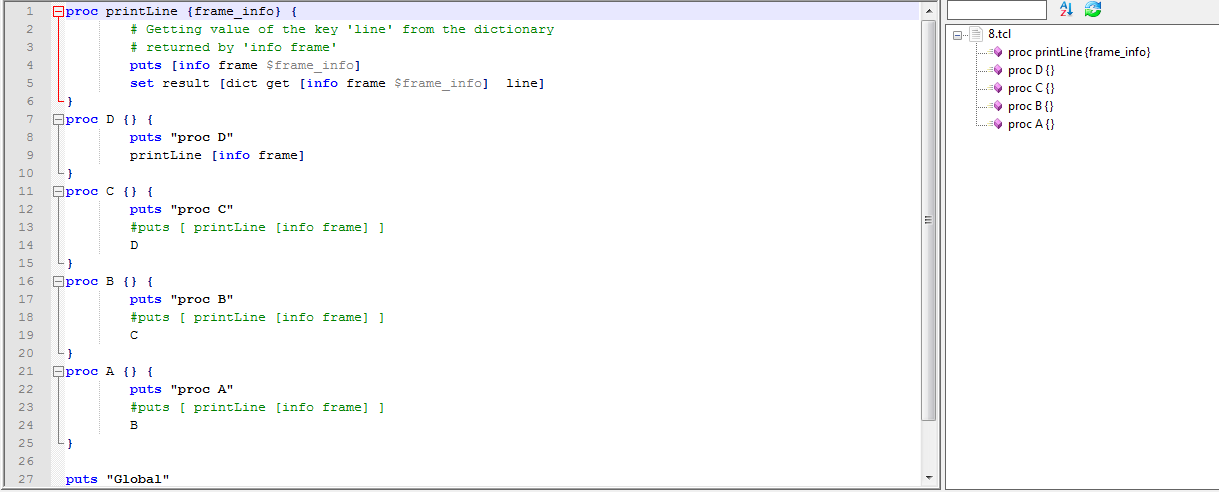
Hello Guys,One more good solution for notepad++.When I was doing my project i came across that function list is not visible for tcl script file and without function list ,it is very tedious to understand code or edit code.so just google it and explore some solution regarding this.Here I tried to explain solution with step by step so it is easy to understand.


Open functionList.xml file (Location : C:\Program Files (x86)\Notepad++\)in an editor.  FunctionList.xml is in the installation directory of Notepad++.
Add this line to the section with all the other association-entries.


 <association langID="29" id="tcl_procedure"/>


Add this to the section <parsers>


<parser id="tcl_procedure" displayName="Tcl source" commentExpr="(#)">
    <function
            mainExpr="^[\t ]*((proc)[\s]+)[^\n]+\{"
            displayMode="$functionName">
        <functionName>
            <nameExpr expr="[\w: ]+ \{.*\}"/>
        </functionName>
    </function>
</parser>

Now press Windows key and go to run window


Then write below line in run window

 %APPDATA%\notepad++


Then It will open window from them just delete functionList.xml file.It is actually cache file.

 Restart Notepad++.


 here you go.......

Reference For BASH script:-

http://99-developer-tools.com/notepad-function-list-tcl-bash/